In Brief
WordPress 404 errors occur when your server can’t locate a requested page
The quickest fix is resetting your permalinks in Settings > Permalinks > Save Changes
A corrupted or missing .htaccess file is often the cause, and you can recreate it manually
After changing URLs or deleting pages, you need 301 redirects to avoid 404 errors
Google Search Console helps you find 404 errors before your customers do
You click a link on your WordPress website and instead of your carefully crafted page, you get a “Page Not Found” message.
Your heart sinks.
Has your content vanished? Is your website broken?
Take a breath. WordPress 404 errors are one of the most common problems you’ll encounter as a website owner, and they’re usually straightforward to fix.
A 404 error affects more than just one page. Visitors who hit dead ends can leave your site frustrated.
Search engines like Google may reduce traffic to pages that consistently return errors. For a small business website, this means lost customers and wasted effort on content that nobody can access.
This guide walks you through exactly what causes WordPress 404 errors and how to fix them yourself.
You’ll learn the quick fixes that solve most problems in minutes, plus the more involved solutions for stubborn errors. By the end, you’ll know how to prevent these errors from happening again.
Table of Contents
What Is a WordPress 404 Error?
A 404 error is an HTTP status code that tells your browser a requested page can’t be found on the server.
When WordPress can’t locate the page you’re trying to access, it displays an error message instead of your content.
You might see this error displayed in different ways depending on your WordPress theme:
- “404 Not Found”
- “Page Not Found”
- “Oops! That page can’t be found”
- “Error 404”
The error doesn’t mean your website is completely broken. It simply means that specific page can’t be located at that particular URL.
Your homepage might work perfectly while certain posts or pages show 404 errors.
Why Is It Called a 404 Error?
The number 404 comes from the HTTP status code system created in the early days of the internet.
Status codes in the 400 range indicate client-side errors, meaning something went wrong with the request. The “04” specifically means the server understood your request but couldn’t find what you asked for.
It’s simply a standardised way for servers to communicate “not found” to browsers.
Why Do 404 Errors Matter?
When customers can’t find what they’re looking for, they leave. According to various user experience studies, most visitors won’t try to find the correct page themselves. They simply click away to a competitor’s website.
Search engines also pay attention to 404 errors. If Googlebot repeatedly encounters broken pages on your site, it may crawl your content less frequently. Pages with incoming links that return 404 errors waste the SEO value those links provide.
For UK small businesses competing for local search visibility, keeping your website free from 404 errors helps maintain your search rankings and customer trust.
Our maintenance clients get fast error fixes included in their £99 monthly fee
Common Causes of WordPress 404 Errors
Understanding why 404 errors occur helps you fix them faster and prevent future problems.
Permalink Settings Issues
Permalinks are the permanent URLs for your posts and pages. WordPress uses a special file called .htaccess to translate these user-friendly URLs into instructions your server understands.
The URL for this page is: https://www.respectexperts.co.uk/how-to-fix-wordpress-404-errors/
When your permalink settings become corrupted or out of sync, WordPress can’t find your content.
This commonly happens after:
- WordPress updates
- Plugin installations or updates
- Theme changes
- Server migrations
WordPress Permalinks: Full Guide
Deleted or Moved Content
Sometimes the simplest explanation is correct. If you deleted a page or post, any links pointing to it will return 404 errors.
WordPress keeps deleted content in the trash for 30 days, so you can recover recent deletions.
Moving content to a new URL without setting up a redirect causes the same problem. Anyone clicking the old link, including Google, will hit a 404 error instead of finding your content at its new location.
Site Migration Problems
Moving your WordPress site to a new host or domain is a common trigger for 404 errors.
During migration, your database and files must be correctly synchronised. If your .htaccess file doesn’t transfer properly or your database contains old URLs, you’ll see errors across your site.
Plugin or Theme Conflicts
Plugins that modify how WordPress handles URLs can interfere with your permalink structure.
Custom post type plugins, caching plugins like WP Super Cache or W3 Total Cache, and SEO plugins such as Yoast or Rank Math are common culprits. Theme changes can also cause issues if your previous theme used custom URL structures.
.htaccess File Problems
The .htaccess file sits in your WordPress root folder and controls how your server handles URL requests. If this file becomes corrupted, gets deleted, or lacks the correct permissions for WordPress to write to it, your permalinks won’t work.
Quick Fixes That Solve Most 404 Errors
Before trying anything complex, start with these straightforward solutions. They fix the majority of WordPress 404 problems.
Check the URL First
It sounds obvious, but double-check the URL you’re trying to access. A simple typo or extra character can cause a 404 error.
Try accessing the page directly from your WordPress admin by clicking “View” on the post or page list.
If the page loads from the admin link but not from a typed URL, the problem is with your permalinks or .htaccess file.
Reset Your Permalinks
This is the most effective fix for WordPress 404 errors and takes less than a minute:
- Log into your WordPress admin dashboard
- Go to Settings and then Permalinks
- Click Save Changes without changing anything
That single click forces WordPress to regenerate your permalink rules and flush the rewrite cache. In many cases, this immediately solves 404 errors on posts and pages.
If this doesn’t work, try a different approach:
- Note your current permalink structure
- Select “Plain” and click Save Changes
- Select your original structure again
- Click Save Changes once more
This double-save forces a complete refresh of your permalink settings.
Clear Your Browser Cache
Your browser might be showing you a cached 404 error even after the problem is fixed. Try these steps:
- Clear your browser cache and cookies
- Open the page in a private or incognito window
- Try a different browser
- Test on your phone using mobile data
If the page works in incognito mode but not in your regular browser, your cache is the issue.
Check Your Trash
WordPress keeps deleted content in the trash for 30 days. If you accidentally deleted a page, you can restore it:
- Go to Pages or Posts in your WordPress admin
- Click the Trash link above the list
- Find your missing content
- Click Restore to bring it back
If the page was deleted more than 30 days ago, you’ll need to restore from a backup or recreate the page.
How to Fix .htaccess File Problems
If resetting permalinks didn’t work, your .htaccess file might need attention.
What Is the .htaccess File?
The .htaccess file is a configuration file used by Apache web servers. It tells your server how to handle URLs on your WordPress site. Without the correct rules in this file, your pretty permalinks won’t work.
Most WordPress hosting providers including SiteGround, Starter Web Hosting, and 20i use Apache servers, so .htaccess problems are common. If your host uses NGINX instead, the configuration works differently. Contact your host if you’re unsure which server software you use.
Accessing Your .htaccess File
First do a backup.
You can access .htaccess through your hosting control panel’s file manager or using an FTP client like FileZilla:
- Connect to your website via FTP or file manager
- Navigate to your WordPress root folder (where wp-config.php lives)
- Look for the .htaccess file
The file might be hidden. In your FTP client, enable the option to show hidden files. In cPanel’s file manager, look for a “Show Hidden Files” setting.
Regenerating the .htaccess File
If your .htaccess file is missing or corrupted, WordPress can create a new one:
- Rename your existing .htaccess file to .htaccess.backup
- Go to Settings > Permalinks in WordPress
- Click Save Changes
WordPress should create a fresh .htaccess file with the correct rules. Check if this fixes your 404 errors.
Manual .htaccess Code
If WordPress can’t write to your .htaccess file, you may need to add the code manually. The standard WordPress .htaccess code looks like this:
# BEGIN WordPress <IfModule mod_rewrite.c> RewriteEngine On RewriteBase / RewriteRule ^index\.php$ - [L] RewriteCond %{REQUEST_FILENAME} !-f RewriteCond %{REQUEST_FILENAME} !-d RewriteRule . /index.php [L] </IfModule> # END WordPressCopy this code into a plain text file, name it .htaccess, and upload it to your WordPress root folder.
File Permissions
Your .htaccess file needs the correct permissions for WordPress to write to it. The recommended permission setting is 644, which allows your server to read the file while restricting who can modify it.
If you see a message in your Permalinks settings saying WordPress can’t write to .htaccess, ask your hosting provider to check the file permissions.

Setting Up 301 Redirects
When you move content to a new URL or delete pages that have incoming links, you need 301 redirects to prevent 404 errors.
What Is a 301 Redirect?
A 301 redirect automatically sends visitors from an old URL to a new one. It tells search engines that the page has permanently moved, preserving the SEO value from any links pointing to the old address.
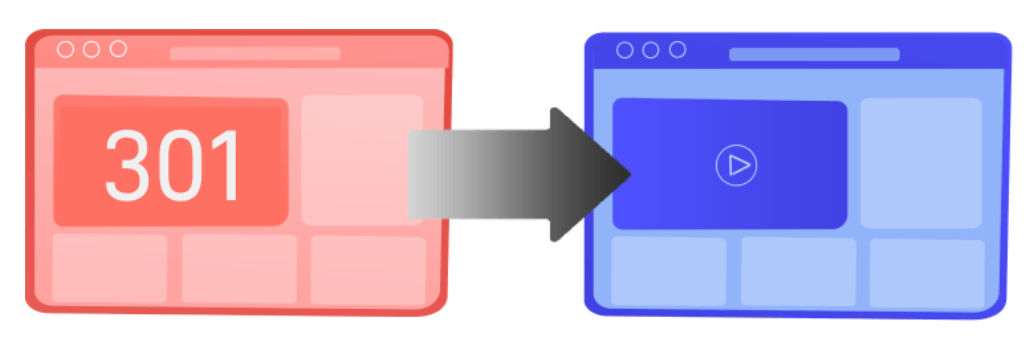
Without redirects, anyone clicking an old link hits a 404 error.
This includes links from other websites, social media posts, email newsletters, and Google search results.
Using a Redirect Plugin
The easiest way to manage redirects on WordPress is with a plugin. The Redirection plugin is free and widely used:
- Install and activate the Redirection plugin from your Plugins menu
- Go to Tools > Redirection
- Enter the old URL in the Source URL field
- Enter the new URL in the Target URL field
- Click Add Redirect
The plugin also monitors 404 errors on your site, making it easy to spot and fix broken links as they appear.
Rank Math
If you use Rank Math as your SEO plugin then this can monitor 404 errors and gives you an easy way to implement 301 redirects.
Adding Redirects via .htaccess
First do a backup.
You can also add redirects directly to your .htaccess file. Add these lines above the WordPress block:
Redirect 301 /old-page-url/ https://yoursite.co.uk/new-page-url/Replace the URLs with your actual old and new addresses. This method doesn’t require an extra plugin but needs more technical confidence.
Finding and Monitoring 404 Errors
You can’t fix 404 errors if you don’t know they exist. Regular monitoring catches problems before your customers notice them.
Google Search Console
Google Search Console is a free tool that shows you crawl errors on your website:
- Add your site to Google Search Console if you haven’t already
- Go to the Pages report
- Look for pages marked “Not found (404)”
Google lists the URLs returning 404 errors and when it last tried to access them. This helps you prioritise which errors to fix first based on how often Google encounters them.
Broken Link Checker Plugins
WordPress plugins like Broken Link Checker scan your site for internal and external links that return errors. They check your posts, pages, and comments for links that need attention.
Be aware that link checker plugins can slow down your site while scanning. Some UK hosts disable them due to server resource usage. Consider running checks periodically rather than continuously.
Manual Testing
After making changes to your site, test your important pages manually. Click through your main navigation, check your most popular posts, and verify that contact forms and key landing pages work correctly.
Log out or use incognito mode
To properly test for 404 and 301 instances you need to be ‘logged out’ of WordPress. A simple way is to view your site in incognito mode.
Rank Math SEO Plugin
Rank Math includes a useful 404 Monitor in its free version.
Enable it from the dashboard and it tracks every 404 error occurring on your site. You can see which URLs cause problems and where visitors came from when they hit the error.
SEO Health Checks
SEO Audits or Health Checks will also look at how many 404 errors crop up. This is a really good way to catch internal links that are now dead ends, because a page has been moved or deleted.
Preventing Future 404 Errors
Taking a few precautions helps you avoid 404 problems altogether.
Before Deleting Content
Think carefully before permanently deleting posts or pages. If other pages link to that content, or if it has external links pointing to it, deletion creates 404 errors.
Instead of deleting, consider:
- Updating the content to make it current
- Redirecting to a related page
- Combining thin content with other posts
If you must delete, set up a redirect to a relevant alternative page first.
Before Changing URLs
Changing a page’s URL slug creates a new address while abandoning the old one. Before changing any URL:
- Note the current URL
- Make your changes
- Set up a 301 redirect from the old URL to the new one
This ensures anyone with the old link still reaches your content.
Regular Backups
WordPress backups let you restore deleted content and recover from migration problems. Your hosting provider likely offers automatic backups, but consider a dedicated backup plugin for more control.
Test your backups occasionally by restoring to a staging environment. A backup you can’t restore isn’t really a backup.
Plugin Updates
Keep your WordPress core, themes, and plugins updated. Outdated software can cause compatibility issues that lead to 404 errors. However, update carefully and check your site after each update to catch any problems quickly.
When to Get Expert Help
Some 404 errors need expert attention. Consider getting help if:
- You’ve tried all the fixes above and still see errors
- Your entire site shows 404 errors, not just individual pages
- The problem started after a hosting migration
- You’re not comfortable editing .htaccess files
- Your hosting provider’s support can’t identify the cause
A WordPress professional can diagnose complex server configuration issues, database problems, and conflicts that are difficult to troubleshoot yourself.
Conclusion
WordPress 404 errors are frustrating but almost always fixable.
Start with the simplest solution by resetting your permalinks. If that doesn’t work, check your .htaccess file and consider whether you need redirects for moved or deleted content.
Regular monitoring through Google Search Console helps you catch 404 errors before they affect your customers and search rankings.
Taking a few minutes to set up proper redirects when changing URLs prevents most 404 problems from occurring in the first place.
Here’s what to do next: log into Google Search Console, review the Pages report, and address any 404 errors you find. If you don’t have Search Console set up yet, make that your first step.
Then set up regular monthly checks so new problems don’t catch you off guard.
Frequently Asked Questions
This pattern usually points to a permalink problem. Your homepage uses a different URL structure than individual posts. Go to Settings > Permalinks and click Save Changes to regenerate your rewrite rules. If that doesn’t work, your .htaccess file may need checking. Most UK hosting providers use Apache servers where .htaccess controls how URLs work.
Site migrations often break the link between your database and your .htaccess file. Your new server may not have the same configuration as the old one. First, reset your permalinks. If that fails, check that your .htaccess file transferred correctly and contains the standard WordPress rewrite rules. DNS changes can also cause temporary 404 errors for up to 48 hours.
Yes, they can. Google reduces crawl frequency on sites with many 404 errors. Pages with external links pointing to them lose their SEO value if they return 404 errors. However, some 404 errors are normal. The problem comes when important pages return errors or when you have hundreds of broken links. Fix errors on your key pages first.
Image 404 errors usually mean the file was deleted or the path is wrong. Check your Media Library to see if the image still exists. If it does, re-insert it into your post. If it was accidentally deleted, restore it from your trash or a backup. Moving your WordPress installation to a subfolder can also break image paths.
A 404 error means “page not found” without specifying why. A 410 error means the page once existed but was intentionally removed and won’t return. For SEO purposes, 410 tells Google to remove the page from its index faster. Use 410 when you deliberately delete content and 301 redirects when you move content to a new URL.
Yes, a custom 404 page improves user experience. Instead of showing a generic error message, you can help visitors find what they need with a search box, links to popular pages, or a brief apology. Most WordPress themes include 404 page templates you can customise. Keep the design consistent with your site and offer clear navigation options.
Use Google Search Console’s Pages report to see which URLs Google can’t access. Install a plugin like Broken Link Checker or Redirection to scan for internal broken links. You can also use free online tools that crawl your site and report errors. Check your 404 errors monthly to catch new problems before they affect many visitors.
Yes, plugins that modify URL structures can cause 404 errors. Custom post type plugins, some SEO plugins, and caching plugins are frequent culprits. If 404 errors started after installing a plugin, deactivate it and reset your permalinks. Check the plugin’s support forum as others may have experienced the same issue.
Keep redirects for at least one year, preferably longer. Search engines need time to update their indexes, and external links may never be updated. Redirects use minimal server resources, so there’s little downside to keeping them permanently. Only remove redirects if the redirect chains become excessively long.