In Brief
Brute force attacks are automated password-guessing attempts on your WordPress login
Limit Login Attempts Reloaded blocks IP addresses after failed login tries
Two-factor authentication makes stolen passwords useless to attackers
Changing your login URL from /wp-admin stops most automated scanning bots
Disable XMLRPC unless you specifically need it for Jetpack or the WordPress app
Every WordPress site faces automated login attempts.
Bots scan the internet constantly, trying common username and password combinations on any WordPress login page they find. These brute force attacks aren’t personal. They’re opportunistic, targeting thousands of sites hoping to find one with weak credentials.
WordPress allows unlimited login attempts by default. Without additional protection, there’s nothing to stop a bot from testing passwords indefinitely.
A weak or commonly used password could eventually be guessed. Even when attacks fail, the sheer volume of requests can slow your site or strain your server resources.
The good news is that stopping most brute force attacks takes just a few simple steps.
This guide explains the most effective protection methods in plain English, so you can secure your site without needing technical expertise.
Table of Contents
What Is a Brute Force Attack?
Think of a brute force attack like someone trying every key on a massive keyring until one opens your front door.
Attackers use automated software to test thousands of username and password combinations against your WordPress login page. They’re scanning the internet for any WordPress site they can access, rather than targeting you specifically.
WordPress sites are popular targets because the login page location is predictable. Every standard installation uses /wp-admin or /wp-login.php as the login URL. Attackers don’t need to search for it.
These attacks often use networks of compromised computers called botnets. A single botnet can attempt hundreds of login combinations per minute across thousands of sites simultaneously.
Signs Your Site May Be Under Attack
You might not notice an attack immediately, but several warning signs can alert you:
- Your website suddenly runs slowly without any obvious cause
- You receive multiple failed login notification emails from security plugins
- Your hosting provider contacts you about unusual server resource usage
- You get locked out of your own site because security software blocked your IP address
- Your server logs show repeated requests to wp-login.php from unfamiliar IP addresses
If you notice any of these signs, improving your WordPress security by implementing the protection measures below should be your priority.

How to Stop Brute Force Attacks on WordPress
It’s difficult to prevent bots attempting these login attacks but we can slow them down and make things more complicated.
Effective protection uses multiple layers. Each measure blocks a different attack method, so combining them provides the strongest defence.
Install a Login Limiting Plugin
The most straightforward protection is limiting how many times someone can attempt to log in. After a set number of failed attempts, the plugin blocks that IP address temporarily.
Limit Login Attempts Reloaded is the most widely used option, with over 2.5 million active installations. The free version handles everything most sites need.
After installing the plugin, configure these settings:
Allowed retries: 4 attempts before lockout
Lockout duration: 20 minutes for the first lockout
Increase lockout: 24 hours after 4 lockouts
GDPR compliance: Enable this to display a privacy notice on your login page
The plugin works on the standard login page, XMLRPC, and WooCommerce login forms. You’ll receive email notifications when lockouts occur, helping you monitor attack patterns.
If you already have Wordfence installed then this option is available by default.
How to Protect Your WordPress Login Page
Set Up Two-Factor Authentication
Two-factor authentication (2FA) adds a second verification step after entering your password. You’ll need to provide a code from your phone before gaining access.
This means that even if an attacker correctly guesses your password, they still cannot log in without your physical device.
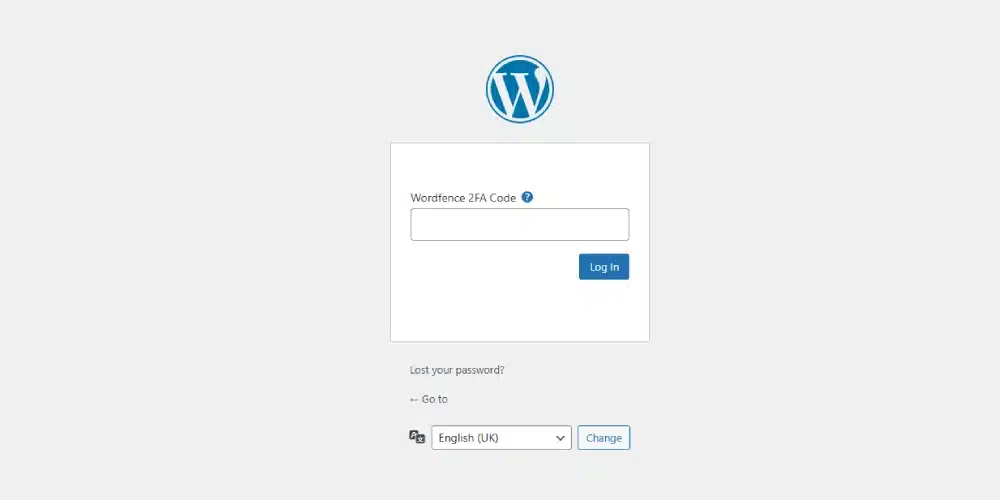
Wordfence Login Security is a free plugin that adds 2FA to WordPress. Setup takes about five minutes:
- Install and activate the plugin
- Download an authenticator app (Google Authenticator or Authy) on your phone
- Scan the QR code shown in your WordPress dashboard
- Enter the six-digit code to confirm setup
Each login now requires the current code from your authenticator app. These codes change every 30 seconds, making them impossible to guess through brute force methods.
How to Set Up Two-Factor Authentication in WordPress
Add CAPTCHA to Your Login Page
CAPTCHA adds a simple verification step that’s easy for humans but difficult for automated bots. Modern CAPTCHA systems like reCAPTCHA v3 work invisibly in the background, only presenting a challenge when they detect suspicious behaviour.
Several plugins add CAPTCHA to WordPress login forms.
Login No Captcha reCAPTCHA is free and straightforward to configure. You’ll need to register for a free API key from Google, then paste it into the plugin settings.
CAPTCHA works well alongside login limiting. The CAPTCHA blocks most bots before they even attempt passwords, while login limiting catches any that get through.
Change Your Login URL
Every WordPress site uses /wp-admin for the login page by default. Attackers know this, so their bots target this URL automatically. Changing it to something unique means automated scanners will find nothing.
WPS Hide Login is a lightweight plugin that changes your login URL without modifying core WordPress files. Install it, go to Settings > General, scroll down, and enter your new login URL. Choose something memorable but not obvious, like /team-login or /office-access rather than /secret-login or /admin2.
Write down your new URL or bookmark it. If you forget it, you’ll need to deactivate the plugin via FTP or your hosting file manager to regain access.
This measure won’t stop a determined attacker researching your specific site, but it blocks the vast majority of automated scanning attempts that target default WordPress URLs.
Disable XMLRPC If You Don’t Need It
XMLRPC is an older protocol that allows external applications to communicate with WordPress.
It was useful before the REST API existed, but now it’s primarily a security liability. Attackers can use XMLRPC to attempt brute force attacks through a back door that bypasses your login page entirely.
The problem is that XMLRPC accepts multiple login attempts within a single request. An attacker can try hundreds of passwords in one server request, making attacks much faster and harder to detect.
If you don’t use the WordPress mobile app, Jetpack, or other services requiring XMLRPC, disable it. The Disable XML-RPC plugin blocks all XMLRPC requests with no configuration needed.
Before disabling, check whether your site depends on XMLRPC. Jetpack requires it to function. Some older third-party posting tools also use it. If you’re unsure, disable it and monitor whether anything stops working.
Check If XMLRPC Is Enabled
First, check whether XMLRPC is currently active on your site. Type your website address followed by /xmlrpc.php into your browser (for example: yoursite.co.uk/xmlrpc.php).
If you see a message saying “XML-RPC server accepts POST requests only”, XMLRPC is enabled and accepting connections. If you get a 403 Forbidden error or a blank page, it’s already disabled or blocked.
Use Wordfence (If You Already Have It)
If you’ve already installed Wordfence for login limiting or other security features, you can use it to block XMLRPC attacks without adding another plugin.
In your WordPress dashboard, go to Wordfence > Login Security > Settings. Look for the checkbox labelled “Disable XML-RPC authentication” and tick it. This blocks brute force login attempts through XMLRPC while still allowing other XMLRPC functions that some plugins may need.

This approach is useful because it stops the authentication attacks (the main security risk) without completely disabling XMLRPC. If you later install something that needs XMLRPC for non-login functions, it should still work.
Always Use Strong, Unique Passwords
All the technical measures above become less effective if your password is easy to guess.
Attackers don’t just try random combinations. They use lists of common passwords and credentials from data breaches to make educated guesses.
A strong WordPress password should:
- Be at least 14 characters long (longer is better)
- Include uppercase and lowercase letters, numbers, and symbols
- Avoid dictionary words, names, or personal information
- Be unique to your WordPress site
Password managers like Bitwarden (free) or 1Password make strong passwords practical. They generate and store complex passwords, so you only need to remember one master password.
Also, never use “admin” as your username. WordPress stopped using this as the default in version 3.0 (released in 2010), but attackers still try it first on every site.
And never share login details between users, always create individual accounts.

When to Consider Expert Help
These measures protect most small business websites effectively. However, some situations benefit from expert assistance.
Consider professional security help if:
- Your site handles sensitive customer data or processes payments
- You’ve been hacked before and want to prevent recurrence
- You manage multiple WordPress sites and need centralised monitoring
- You want ongoing security audits and proactive threat monitoring
Many managed WordPress hosting providers include security features as standard. Check what your host provides before installing additional plugins, as you may already have some protection in place.
Keeping Your Site Secure Long-Term
Brute force protection isn’t something you set up once and forget. Security requires ongoing attention.
Keep your security plugins updated. Developers regularly improve detection methods and patch vulnerabilities. Review your user accounts periodically and remove any you no longer need. Each account is a potential entry point.
Start with the fundamentals: install a login limiting plugin and enable two-factor authentication.
These two measures alone stop the vast majority of automated attacks. Add the other layers as you become more familiar with WordPress security.
Your website represents your business online. The time you invest in security now is far less than the time you’d spend recovering from a successful attack.
One more thing: always keep your WordPress core, themes, and plugins updated.
Updates often include security patches that fix known vulnerabilities. You can enable automatic updates for minor WordPress releases in your dashboard settings.
Frequently Asked Questions
A brute force attack uses automated software to try thousands of username and password combinations on your login page. Bots test common passwords and credentials from data breaches until they find a match. WordPress is frequently targeted because every standard installation uses the same predictable login URLs.
Look for sudden slow performance, multiple failed login notification emails, hosting provider alerts about unusual server usage, or getting locked out by your own security software. Plugins like Wordfence show logs of failed login attempts, helping you identify attack patterns.
Good question. WordPress prioritises ease of use and flexibility out of the box. Limiting login attempts could lock out legitimate users who forget their passwords. This design choice means site owners need to add their own protection through plugins or hosting-level security.
Limit Login Attempts Reloaded is the most popular choice, used on over 2.5 million sites. It’s free, lightweight, and includes GDPR compliance features. Wordfence Security offers login limiting alongside broader security features if you want an all-in-one solution.
Two-factor authentication requires something you know (your password) plus something you have (your phone) to log in. Even if attackers guess your password through brute force, they cannot access your account without the time-sensitive code from your authenticator app.
XMLRPC is an older method for external applications to communicate with WordPress. It’s largely been replaced by the REST API but remains enabled by default. Attackers exploit it for brute force attacks because it accepts multiple login attempts per request. Disable it unless you use Jetpack or the WordPress mobile app.
Yes. The volume of requests from a sustained attack can slow your website, increase server resource usage, and potentially trigger extra charges from your hosting provider. Blocking attacks before they reach your server prevents this performance impact.
For most small business sites, free security plugins provide solid protection. Limit Login Attempts Reloaded and Wordfence both offer capable free versions. Paid upgrades add features like priority support, advanced scanning, and real-time threat intelligence that larger sites may find valuable.