In Brief
The 500 Internal Server Error is a generic server message that doesn’t explain what went wrong
A corrupted .htaccess file is the most common cause – rename it and regenerate through your Permalinks settings
Plugin and theme conflicts frequently trigger this error, especially after updates
Increasing your PHP memory limit in wp-config.php often resolves the problem
Always back up your site before making changes, and contact your hosting provider if basic fixes don’t work
Your WordPress site was working perfectly an hour ago. Now you’re staring at a blank screen with “500 Internal Server Error” or just a white page.
Your stomach drops because you know your site is completely down. Customers can’t reach you, and potential enquiries are going unanswered.
The good news is that this error is almost always fixable and you don’t need to be a tech guru or developer to sort it out.
This guide walks you through the most common causes and fixes in plain English. By the end, you’ll know exactly how to get your site back online and how to prevent this happening again.
Table of Contents
What Is a WordPress 500 Internal Server Error?
The 500 Internal Server Error is your web server’s way of saying “something broke, but I don’t know what.”
It’s frustrating because unlike a 404 error (page not found), this message gives you no clues about the actual problem.
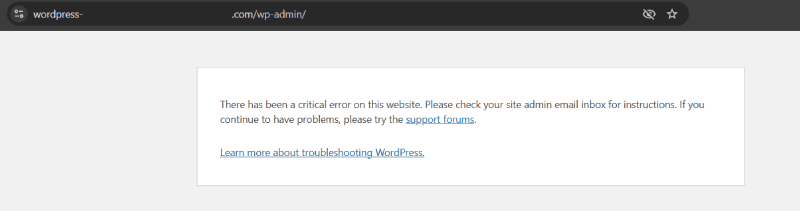
This error happens on the server side, not in your browser.
Your WordPress site tries to load, but something prevents the server from completing the request. Rather than showing your website, the server displays the 500 error instead.
You might see different versions of this error depending on your hosting setup and browser. It could appear as “HTTP Error 500”, “Internal Server Error”, or sometimes just a completely white screen. Some hosts display custom error pages with their own branding.
What Causes This Error?
The 500 error can have several triggers. Understanding these helps you troubleshoot more effectively and fix the problem faster.
Common Triggers
A corrupted .htaccess file is the most frequent culprit. This file controls how your server handles requests. Plugin installations, theme changes, or even failed updates can corrupt it. When the server tries to read a broken .htaccess file, it fails and throws the 500 error.
Plugin conflicts happen when two plugins don’t work well together, or when a plugin update breaks compatibility with your WordPress version. You might notice the error appearing right after you’ve updated or installed a plugin.
Theme issues cause similar problems. A poorly coded theme or one that’s incompatible with your PHP version can crash your entire site without warning.
PHP memory limits cause issues when your site tries to do more than your hosting allows. Complex plugins, large images, or high traffic can push your site over its memory allocation. When the server runs out of resources, it stops responding entirely.
Incorrect file permissions prevent the server from reading essential files. This usually happens after moving a site or when hosting configurations change.
Corrupted WordPress core files occasionally cause problems, particularly on older sites or after failed automatic updates.
How to Update WordPress Plugins Safely (Without Breaking Your Website)
Before You Start: Back Up Your Site
Before you change anything, make a full backup. If you can access your hosting control panel, most providers offer one-click backup tools. Look for “Backup” or “Backup Wizard” in cPanel or your hosting dashboard.
If you can’t create a backup through your hosting panel, don’t panic.
The fixes below are generally safe, but having a backup gives you peace of mind. If your hosting provider offers automatic daily backups, you can restore to yesterday’s version if something goes wrong.
How to Fix the 500 Internal Server Error
Work through these steps in order. Each one addresses a common cause, and you might fix the problem on your first or second attempt.
Step 1: Refresh the Page and Clear Your Cache
Start with the simplest fix.
Wait thirty seconds and refresh your browser. Sometimes servers get temporarily overloaded and recover quickly. This happens more often on shared hosting during traffic spikes.
If refreshing doesn’t help, clear your browser cache. In Chrome, press Ctrl+Shift+Delete (or Cmd+Shift+Delete on Mac), select “Cached images and files”, and click “Clear data”. Then try loading your site again.
If your site works in a different browser or on your phone but not your main browser, the problem is your browser cache rather than the server. Clear everything and try again.
WordPress Error Fixes

Step 2: Check Your .htaccess File
This fix solves the problem for most people. The .htaccess file sits in your WordPress root directory and controls important server settings. If it’s corrupted, your entire site breaks.
You’ll need to access your site’s files through FTP or your hosting file manager. In cPanel, look for “File Manager” and open your public_html folder.
Find the file called .htaccess (it might be hidden, so enable “Show Hidden Files” in your file manager settings). Right-click and rename it to .htaccess_old. This temporarily disables the file.
Now try loading your site. If it works, the .htaccess file was your problem. Log into your WordPress dashboard, go to Settings then Permalinks, and click “Save Changes” without changing anything. WordPress generates a fresh, clean .htaccess file automatically.
If renaming .htaccess didn’t fix the error, rename it back to .htaccess and continue to the next step.
Step 3: Deactivate Your Plugins
Plugin ‘conflicts’ are extremely common. If you can access your WordPress dashboard, go to Plugins, select all, and choose “Deactivate” from the bulk actions menu.
If you’re locked out of your dashboard (which is likely with a 500 error), you’ll need to deactivate plugins through FTP or your file manager. Open wp-content/plugins and rename the “plugins” folder to “plugins_old”.
This immediately deactivates all plugins. Try loading your site. If it works, a plugin was causing the problem.
Rename the folder back to “plugins”. Then rename each individual plugin folder inside it, one at a time, testing your site after each change. When the error returns, you’ve found your problematic plugin. Delete that plugin and find an alternative.
Step 4: Switch to a Default Theme
If deactivating plugins didn’t help, your theme might be causing the issue. Through FTP or file manager, open wp-content/themes.
Rename your current theme’s folder. WordPress will automatically fall back to a default theme like Twenty Twenty-Four if you have one installed.
If your site loads with the default theme, your theme is the problem. You might need to reinstall it, update it, or contact the theme developer for support.
Step 5: Increase PHP Memory Limit
If your site crashes because it’s running out of memory, increasing the PHP limit often fixes the problem. You’ll need to edit your wp-config.php file, which sits in your WordPress root directory.
Open wp-config.php in a text editor. Find the line that says “That’s all, stop editing!” and add this line just above it:
define('WP_MEMORY_LIMIT', '256M');Save the file and upload it back to your server. This tells WordPress to use up to 256MB of memory.
If this doesn’t work, your hosting provider might have server-level limits that override this setting. Contact them to ask about increasing your PHP memory allocation.
Step 6: Check File Permissions
Incorrect file permissions can prevent the server from accessing important files. The correct permissions for WordPress are 755 for folders and 644 for files.
In your FTP client or file manager, right-click on folders and files to check their permissions. If they’re set to anything other than 755 (folders) or 644 (files), change them.
Pay particular attention to the wp-admin, wp-content, and wp-includes folders. Incorrect permissions here often cause server errors.
Step 7: Reinstall WordPress Core Files
If nothing else works, try replacing your WordPress core files. This won’t affect your content, themes, or plugins.
Download a fresh copy of WordPress from wordpress.org. Unzip it and upload the wp-admin and wp-includes folders to your server, overwriting the existing folders.
Don’t touch wp-content, as this contains your themes, plugins, and uploads.
After uploading, clear your cache and try loading your site again.
When to Contact Your Hosting Provider
Some problems require help from your hosting company. Get in touch with them if:
- The error keeps returning after you’ve fixed it, which might indicate a server configuration issue on their end
- You’ve tried all the steps above without success, as they can check server logs that reveal the exact cause
- You’re getting database connection errors alongside the 500 error, since database problems usually need server-level fixes
- Your site consistently crashes during moderate traffic, which suggests you need a hosting plan with more resources
Most UK hosting providers offer support through live chat or phone. Be prepared to explain what steps you’ve already tried so they can pick up where you left off.
How to Prevent This Error in Future
Once you’ve fixed the immediate problem, a few simple habits will help you avoid similar issues down the line.
Good Practices
Keep regular backups so you can always restore a working version. Many hosting providers include automatic backups, or you can use a plugin like UpdraftPlus.
Update carefully rather than updating everything at once. Update one plugin at a time and check your site works after each update. This makes it much easier to identify which update caused a problem.
Use a staging site for testing major changes. Most managed WordPress hosts provide staging environments where you can test updates before pushing them to your live site.
Choose quality plugins from reputable developers. Check reviews, update frequency, and compatibility information before installing anything new.
Monitor your site so you know immediately when problems occur. Uptime monitoring services alert you the moment your site goes down, letting you fix issues before customers notice.
Getting Back Online
The 500 Internal Server Error is alarming, but it’s rarely permanent.
Most of the time, a corrupted .htaccess file or a plugin conflict is to blame. Both are quick fixes once you know where to look.
If you’ve worked through all these steps without success, don’t keep guessing. Your hosting provider can access server logs that pinpoint the exact problem.
Sometimes the issue is on their end entirely.
For ongoing peace of mind, consider a WordPress maintenance service that handles updates, backups, and troubleshooting for you. When your website is your business, having expert support means problems get fixed quickly without the stress of figuring it out yourself.
Frequently Asked Questions
A 500 error means something went wrong on the server, but the server can’t identify what. It’s a catch-all error code that indicates the server couldn’t complete your request. Unlike specific errors like “file not found”, this one requires troubleshooting to identify the actual cause. The error originates from the server side, not your browser.
No, a 500 error doesn’t delete your content. Your posts, pages, images, and database remain intact on your server. The error simply prevents the server from displaying your site. Once you fix the underlying cause, everything will be exactly as you left it. However, always back up before making changes just in case.
Most 500 errors can be fixed within 30 minutes if you follow a systematic approach. Simple fixes like regenerating your .htaccess file take just a few minutes. More complex issues involving plugins or memory limits might take longer. If the problem is server-side, you’ll need to wait for your hosting provider to resolve it.
You can fix some causes through your hosting control panel’s file manager, which works similarly to FTP. However, if you’re completely locked out and have no file access, you’ll need to contact your hosting provider. They can access your files and either fix the problem or give you temporary FTP credentials.
Plugin updates sometimes introduce bugs or compatibility issues with your WordPress version, PHP version, or other plugins. When the updated code conflicts with something else on your site, the server can’t process requests properly. This is why updating plugins one at a time and testing between each update helps you identify problems quickly.
Both can indicate similar problems, but they appear differently. A 500 error shows an actual error message, while the white screen of death displays a completely blank page. The white screen typically indicates a PHP error that prevents any output. Both are often caused by plugin conflicts, theme issues, or memory limits.
If the error appeared without any changes on your end, or if multiple fixes haven’t worked, the problem might be server-side. Contact your hosting provider and ask them to check their server logs. They can see errors you can’t access. Server maintenance, resource limits, or configuration changes on their end can all trigger 500 errors.
Start with 256MB, which is sufficient for most WordPress sites. If you’re still getting errors, try 512MB. Setting the limit higher than your hosting plan allows won’t help because your server has its own caps. If you need more than 512MB regularly, consider optimising your site or upgrading your hosting.