In Brief
A complete backup needs your database and your files (themes, plugins, images)
UpdraftPlus is the easiest free backup plugin, trusted by over 3 million website owners
Your hosting control panel (cPanel or Plesk) has built-in backup tools
Store your own backups off-site in cloud storage like Google Drive or Dropbox
Test your backups periodically to make sure they actually work when you need them
Your WordPress website represents hours of hard work.
Every blog post, product listing, and customer enquiry form took time to create and refine. Now imagine logging in one morning to find it all gone.
It happens more often than you’d think.
Server failures, hacking attempts, dodgy plugin updates, and yes, the occasional accidental deletion can wipe out everything you’ve built. Without a backup, you’re left with the painful task of rebuilding from scratch.
The good news is that backing up your WordPress site doesn’t need to cost anything.
You can protect your business website using free tools and a few minutes of your time each week. This guide walks you through three methods to backup your WordPress site without spending a penny, so you can get back online quickly if disaster strikes.
Table of Contents
What Does Backup Mean?
A backup is simply a saved copy of your website. If something goes wrong with your live site, you can use this copy to restore everything to how it was.
Think of it like saving a document before making changes, so you can undo them if needed.
What Actually Gets Backed Up?
A complete WordPress backup has two separate parts that work together. Understanding this helps you avoid the common mistake of only saving half your site.
Your database stores everything you’ve written and configured. This includes all your posts, pages, comments, user accounts, and plugin settings. Think of it as the contents of your website, like the words in a book.
Your files include your themes, plugins, images, and the core WordPress software itself.
These control how your site looks and functions. They’re like the book’s cover, layout, and illustrations. Without them, your database content has nowhere to go.
You need both parts for a proper backup.
Save only your files, and you’ll lose all your written content. Save only your database, and your website won’t display correctly because the design and functionality files are missing.
Method 1: Using a Free Backup Plugin
The simplest way to backup your WordPress site is with a dedicated plugin. You don’t need any technical knowledge, and the entire process takes just a few minutes to set up.
Setting Up UpdraftPlus
UpdraftPlus is the most popular free backup plugin, with over 3 million active installations and a 4.8-star rating. Once configured, it handles everything automatically.
To install it, go to your WordPress dashboard and click Plugins > Add New. Search for “UpdraftPlus” and click Install Now, then Activate.
Once activated, head to Settings > UpdraftPlus Backups. You’ll see a simple dashboard with a large “Backup Now” button. Before running your first backup, click the Settings tab to connect a cloud storage location.
The free version of UpdraftPlus supports Google Drive, Dropbox, Microsoft OneDrive, and several other services. Choose your preferred option and follow the authentication steps. This ensures your backups are stored safely away from your web server, which is exactly what you want.
Running Your First Backup
Return to the main UpdraftPlus screen and click Backup Now.
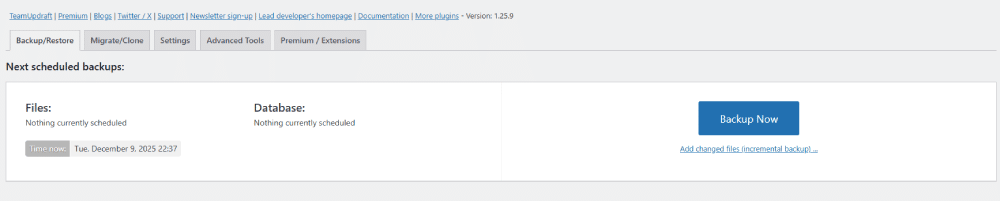
A popup appears asking what you want to include. Keep both “Include your database” and “Include your files” ticked, then click Backup Now again.
The plugin creates your backup and uploads it to your chosen cloud storage. You can watch the progress on screen, and depending on your site size, it might take anywhere from two to fifteen minutes.
For ongoing protection, set up automatic backups in the Settings tab. Most small business sites work well with weekly file backups and daily database backups. Once configured, the plugin handles everything without any further action from you.

Method 2: Using Your Hosting Control Panel
Most hosting providers give you access to a control panel, usually cPanel or Plesk. Both include built-in backup tools that can create full website backups automatically.
Using cPanel Backup Tools
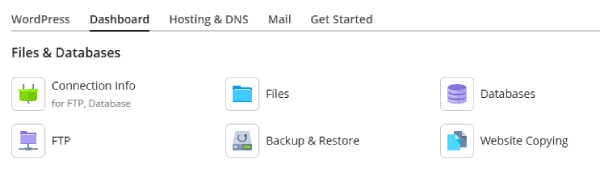
Log into your hosting account and look for Backup or Backup Wizard in the Files section. The Backup Wizard walks you through creating a full or partial backup with just a few clicks. You can download the backup file directly to your computer or, on some hosts, send it to a remote destination.
Many cPanel installations also include JetBackup, which offers scheduled automatic backups. Look for it in your control panel. You can set daily or weekly backups and restore individual files, databases, or your entire site with one click.
Using Plesk Backup Manager
If your host uses Plesk, go to Websites & Domains and click Backup Manager. Click Back Up to create a manual backup, or click Schedule to set up automatic backups. Plesk lets you choose what to include and where to store the backup, including remote FTP servers or cloud storage.
Manual Export via phpMyAdmin
For more control, you can export your database manually. Find phpMyAdmin in the databases section of your control panel. Select your WordPress database from the left sidebar, click the Export tab, keep the “Quick” method and “SQL” format, then click Go. Your database downloads as a file.
For files, use File Manager to compress and download your wp-content folder and wp-config.php file. This manual approach takes longer but works on any hosting setup.
Tip: Whichever option you decide to use, make sure that the backup routine is set to run to a schedule; once a day or once a week etc. And copies of these backups should be kept away from the website server, an ideal place is your Google Drive or online drive/dropbox.
Method 3: Manual Backup via FTP
If you prefer working with files directly, you can use an FTP client to download your entire WordPress installation. This method is more technical but gives you complete control over exactly what gets saved.
Download a free FTP client like FileZilla and connect to your server using the credentials provided by your hosting company. You’ll find these in your hosting control panel or welcome email.
Once connected, navigate to your WordPress folder and download the entire wp-content directory along with the wp-config.php file. For the database, you’ll still need to use phpMyAdmin as described above, since FTP only handles files.
This method takes longer than using a plugin, but it works regardless of which plugins you have installed and gives you a complete copy of everything.

What About Your Hosting Provider’s Backups?
It’s possible that your hosting provider includes automatic backups as part of their package.
Companies like SiteGround, Starter, and 20i run daily backups of your site without you lifting a finger. Some managed WordPress hosts keep backups for 30 days or more.
This sounds ideal, but there are a few things to keep in mind.
You often can’t download these backups yourself. Restoring might require a support ticket and a wait. Some hosts only keep backups for 7-14 days. And if your hosting account gets suspended or the company has problems, you might lose access to those backups entirely.
Treat hosting provider backups as a bonus safety net, not your only protection. Having your own backups through UpdraftPlus or your control panel means you’re never dependent on someone else to restore your site.
Where to Store Your Backups Safely
Creating a backup is only half the job. Where you store it matters just as much.
Never rely solely on backups stored on your web server. If your server fails or gets compromised, you could lose your live site and your backups in one go.
That defeats the entire purpose.
Cloud storage services like Google Drive and Dropbox work well because they’re free, reliable, and accessible from anywhere. If you’re using UpdraftPlus, it connects directly to these services, automating the upload process completely.
For extra safety, follow the 3-2-1 rule: keep three copies of your data, on two different types of storage, with one copy off-site. You might have your live site, a cloud backup, and a copy on an external hard drive at home.
This approach protects against almost any scenario, from server failures to ransomware attacks.
How Often Should You Backup?
Your backup frequency depends on how often your website changes.
If you publish new content regularly, update products, or receive customer form submissions, weekly backups are the minimum. Active e-commerce sites or busy blogs benefit from daily database backups, since the database is where new orders, comments, and content live.
For static websites that rarely change, monthly backups may be sufficient.
However, you should always create a manual backup before making any significant changes. This includes updating WordPress, switching themes, or adding new plugins.
A sensible approach is setting UpdraftPlus to run automatic weekly backups, then creating manual backups before any major changes. This gives you regular protection plus specific restore points when you need them.
Testing Your Backups Work
A backup you’ve never tested is a backup you can’t trust. Far too many website owners discover their backups are corrupted or incomplete only when they desperately need to restore.
Start with a simple check. Download one of your backups and open the ZIP file.
- Can you see your theme files, uploads, and plugin folders?
- Is the database file a reasonable size, not suspiciously small or empty?
These quick checks catch obvious problems before they become disasters.
For real confidence, test a full restoration on a staging site.
Many UK hosting providers offer staging environments as part of their packages, or you can set one up locally using free software like Local by Flywheel. Restoring to a test environment confirms your backup actually works without risking your live site. It’s worth doing this once every few months.
What to Do Next
You now have three free methods to protect your WordPress website. For most small business owners, UpdraftPlus offers the best balance of simplicity and reliability.
Here’s your action plan:
- Install UpdraftPlus today
- Connect it to Google Drive or Dropbox
- Set up automatic weekly backups
- Create your first manual backup right now
If you’d rather have someone handle your backups and maintenance professionally, Respect Experts offers WordPress care plans that include automated backups, security monitoring, and regular updates. Sometimes peace of mind is worth the investment.
Frequently Asked Questions
A WordPress backup is a complete copy of your website that you can use to restore everything if something goes wrong. It includes your database (which holds your content) and your files (themes, plugins, and images). Having a backup means you can recover quickly from hacking, server failures, or accidental deletions.
The easiest free method is using the UpdraftPlus plugin. Install it from your WordPress dashboard, connect it to a cloud storage service like Google Drive, and click Backup Now. You can also backup manually through your hosting control panel using phpMyAdmin for the database and File Manager for your files.
This depends on how frequently your site changes. If you publish new content or receive customer enquiries regularly, backup at least weekly. E-commerce sites or blogs with daily updates benefit from daily database backups. Static sites that rarely change can often manage with monthly backups.
For speed and simplicity we would recommend backing up to two destinations; your web server and a cloud storage account.
The local backup means that you can quickly recover from any simple errors or mistakes that need a ‘roll back’. You can literally restore a site in 5-10 minutes.
Storing backups away from your web server using cloud storage like Google Drive, Dropbox, or OneDrive protects you if your server fails or gets hacked. For maximum security, keep copies in multiple locations, including at least one physical backup on an external hard drive.
Yes. You can backup manually through your hosting control panel using phpMyAdmin to export your database and File Manager to download your files. This method requires more technical knowledge and manual effort, but it works without installing any additional software.
Our preference is to use the server control panel to run the backups. This should mean that the backup routine is less likely to be affected by plugin conflicts etc and also there’s one less plugin to have running.
Yes, it’s good practice to maintain your own backups. Hosting provider backups are often basic, kept for limited periods, and may not be easily accessible. Some providers only backup daily or weekly, and recovering files might take time. Having your own backup gives you immediate control and extra security.
Backup time depends on your site size and your server resources. A small site might complete in 2-3 minutes. Larger sites with many images or products could take 15-30 minutes. Cloud upload speed also affects total time. UpdraftPlus shows progress during the backup so you know exactly what’s happening.
Free backup plugins like UpdraftPlus handle most small business needs perfectly well. Paid versions add features like more cloud storage options, incremental backups, and automatic backups before updates. If you run a busy e-commerce site or need multiple storage destinations, the premium version may be worthwhile.