In Brief
Your login page is the main target for automated hacking attempts called brute force attacks
Use strong, unique passwords and never keep the default “admin” username
Add two-factor authentication (2FA) so a stolen password alone won’t grant access
Install a plugin to limit failed login attempts and block suspicious IP addresses
Consider a security plugin like Wordfence that combines multiple protection features in one package
Your WordPress login page is the front door to your entire website. Every day, automated bots scan the internet looking for WordPress sites to attack.
They target login pages because they’re predictable. By default, every WordPress site uses the same login URLs, and there’s no limit on how many times someone can try to guess your password.
A successful attack can lock you out of your own site, install malware that infects your visitors, or steal customer data. For a small business, the consequences include lost revenue, damaged reputation, and potential GDPR issues if personal data gets compromised.
The good news? Protecting your login page doesn’t require technical expertise or expensive tools.
In this guide, you’ll learn six practical methods to secure your WordPress login, with recommendations for free plugins that handle the heavy lifting.
Table of Contents
Why Your WordPress Login Page Needs Protection
WordPress powers over 40% of all websites on the internet. This popularity makes it an attractive target because the same attack techniques work across millions of sites.
Attackers don’t need to study your specific website. They simply run the same automated scripts against every WordPress installation they find.
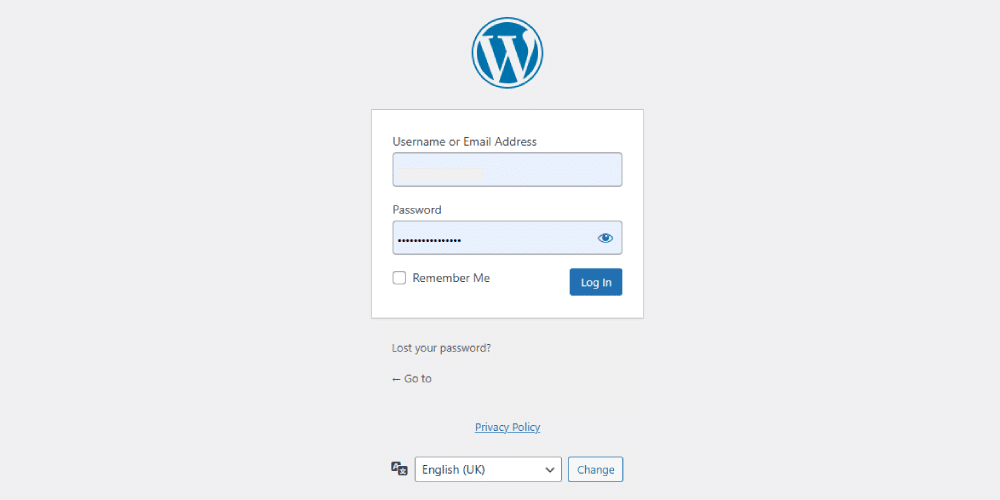
What Are Brute Force Attacks?
A brute force attack happens when automated software tries thousands of username and password combinations until it finds one that works.
Think of it like someone standing at your front door with a massive keyring, methodically trying every key until one fits the lock.
These attacks aren’t personal.
Bots don’t target your specific business.
They scan the internet and attack any WordPress site they find. Even a brand new website with no traffic will receive brute force attempts within days of going live.
The default WordPress setup makes this easier for attackers in two ways.
First, the login URL is always the same: yourwebsite.com/wp-admin or yourwebsite.com/wp-login.php.
Every attacker knows this.
Second, WordPress doesn’t limit login attempts by default. A bot can try thousands of passwords without ever being blocked.
There’s another vulnerability many site owners overlook: XML-RPC. This is a feature that lets external apps communicate with your WordPress site. Attackers can exploit it to bypass login page protections entirely.
The security plugins we’ll recommend later block this route too.
Six Ways to Protect Your WordPress Login Page
1. Use Strong Passwords and Unique Usernames
Weak passwords remain the most common reason WordPress sites get hacked. A strong password should be at least 12 characters long and include a mix of uppercase letters, lowercase letters, numbers, and special characters.
Avoid using anything personal like your business name, postcode, birth year, or pet’s name.
These are surprisingly easy to guess or find through social media. Instead, use a password manager like Bitwarden or 1Password to generate and store complex passwords. Both have free tiers that work well for small businesses.
Your username matters just as much. If your WordPress username is “admin” (the old default), you’ve already given attackers half the information they need.
Create a new administrator account with a unique username, then delete the original admin account. Choose something that isn’t obviously connected to your business name.
2. Add Two-Factor Authentication
Two-factor authentication (2FA) adds a second step to the login process.
After entering your password, you also need to provide a code from your phone. Even if someone steals your password, they still can’t access your site without that second factor.
You can set up 2FA in about five minutes with a free plugin like WP 2FA or Wordfence Login Security.
Once installed, link your account to an authenticator app such as Google Authenticator or Authy on your smartphone. Each time you log in, the app generates a new six-digit code that changes every 30 seconds.
This single change makes a huge difference to your security.
Many security experts consider 2FA essential for any website that handles customer information or takes payments. It’s one of the most effective protections you can add.
3. Limit Failed Login Attempts
By default, WordPress allows unlimited login attempts.
This gives brute force bots endless opportunities to guess your password. A simple fix is to install a plugin that blocks IP addresses after a set number of failed attempts.
Limit Login Attempts Reloaded is a popular free option. You can configure it to lock out an IP address after four failed attempts. The lockout typically lasts 20 minutes for the first offence, then increases for repeat offenders.
This approach stops most automated attacks quickly.
When a bot hits the lockout limit, it will move on to an easier target. Your site becomes less attractive to attackers simply because it puts up resistance. You’ll notice the difference in your security logs almost immediately.

4. Add CAPTCHA Protection
CAPTCHA is the puzzle or checkbox that proves you’re a human rather than a bot. You’ve probably encountered these when filling in forms online.
Adding CAPTCHA to your login page creates another barrier that automated attacks struggle to bypass.
Modern CAPTCHA systems work invisibly in the background. Legitimate users rarely see a challenge, while bots get blocked before they can attempt a login.
You have two main options:
Google reCAPTCHA v3 is the most widely used option. It analyses user behaviour silently and only shows a challenge if it detects suspicious activity. Plugins like CAPTCHA 4WP or the security features in Wordfence can add reCAPTCHA to your login page with minimal setup.
Cloudflare Turnstile is a newer, privacy-focused alternative. It doesn’t track users or use cookies, which makes it a better choice if you’re concerned about GDPR compliance. Turnstile is completely free and works with plugins like Simple Cloudflare Turnstile or WPForms.
For most small business websites, either option strikes the right balance between security and user experience. Your customers and staff won’t notice any difference, but bots will.
5. Change Your Login URL
Some security guides recommend changing your login URL from the default wp-admin to something unique.
Plugins like WPS Hide Login make this straightforward. The idea is that if attackers can’t find your login page, they can’t attack it.
However, this approach has limitations.
Determined attackers can find hidden login pages by scanning for common alternative URLs or checking your site’s source code. Changing the URL can also cause problems with some plugins and caching systems. If you forget your custom URL, you might lock yourself out.
This method works best as an additional layer alongside other protections rather than your primary defence. If you do change your login URL, save it in your password manager or write it down somewhere secure.
6. Use a Security Plugin
Rather than installing separate plugins for each protection method, you can use a security plugin that bundles everything together.
These plugins handle login protection along with other security features like malware scanning and firewall protection.
Wordfence is the most popular option with over four million active installations. The free version includes login security features such as two-factor authentication, login attempt limiting, and CAPTCHA.
It also blocks known malicious IP addresses automatically and protects against XML-RPC attacks.
All in One Security (AIOS) is another solid free choice that covers login protection, file security, and database security in one package.
Both plugins receive regular updates and have large user communities for support.
Recommended Security Plugins for Login Protection
If you prefer to keep things simple, here are three free plugins worth considering:
Wordfence Security offers the most complete free package. Along with login protection, you get a firewall, malware scanner, and real-time threat intelligence from their global network of over four million sites. Updates come regularly, and the plugin has excellent documentation.
Limit Login Attempts Reloaded does one thing well. It limits failed login attempts and blocks suspicious IP addresses. If you only want basic brute force protection without extra features, this lightweight option is reliable and won’t slow down your site.
WP 2FA specialises in two-factor authentication. It provides a friendly setup wizard and supports various authenticator apps. Use this if you already have other security measures in place and just need to add 2FA to your existing setup.
When to Get Help
Sometimes login attacks are just one symptom of a larger security problem. Consider getting professional help if you notice any of these warning signs:
- Your site redirects visitors to strange websites
- Your hosting provider has suspended your account
- Google shows security warnings when people try to visit
- You’ve found admin user accounts you didn’t create
Any of these signs suggest your site may already be compromised.
Professional WordPress security services can clean up existing malware, identify how attackers got in, and implement protection measures properly.
For businesses that rely on their website for income or handle sensitive customer data, this investment protects both your revenue and your reputation.
Protecting Your Login Is Just the Start
Securing your WordPress login page is one of the most effective steps you can take to protect your website.
Start with the basics: strong passwords, unique usernames, and two-factor authentication. Then add a security plugin to limit login attempts and block known threats.
These measures stop the vast majority of automated attacks. Your website becomes a harder target, and bots move on to find easier prey elsewhere.
For ongoing protection, keep WordPress, your themes, and your plugins updated.
Most security vulnerabilities come from outdated software rather than sophisticated hacking. Combined with a properly secured login page, regular updates give your site strong defences against common threats.
Your next step: Install Wordfence or another security plugin today. It takes ten minutes and immediately improves your protection. Then work through the other measures in this guide over the coming week.
Frequently Asked Questions
All WordPress sites use the same default login URLs: yourwebsite.com/wp-admin or yourwebsite.com/wp-login.php. Automated bots simply add these paths to any domain they find. They don’t need to search for it because the location is predictable across millions of WordPress installations.
You might get temporarily locked out if you forget your password and try multiple wrong attempts. Most plugins let you whitelist your own IP address to prevent this. If you do get locked out, wait for the lockout period to expire or ask your hosting provider for help disabling the plugin temporarily.
Not at all. Most 2FA plugins include a setup wizard that guides you through each step. You install an authenticator app on your phone, scan a QR code shown in WordPress, and enter the verification code to confirm it’s working. The whole process takes about five minutes.
Good 2FA plugins provide backup codes during setup. Store these codes somewhere safe, like a password manager or printed document kept securely offline. If you lose your phone, these codes let you regain access while you set up a new device.
Changing your login URL adds a minor layer of obscurity but shouldn’t be your main defence. It can cause issues with some plugins and caching systems. Focus first on strong passwords, 2FA, and login attempt limiting. Only consider URL changes as an extra measure after those basics are in place.
Yes, for most small businesses. Plugins like Wordfence offer substantial protection in their free versions. Premium versions add extra features like real-time malware signature updates, but the free tier covers the essentials: firewall protection, login security, and malware scanning.
Frequently. Security researchers report that WordPress sites receive brute force attempts within days of going live. Popular sites might see hundreds or thousands of attack attempts daily. This is fully automated, so your site size or traffic level doesn’t matter. Small sites get attacked just as often as large ones.
CAPTCHA is the general term for tests that distinguish humans from bots. reCAPTCHA is Google’s implementation, now in version 3, which works invisibly by analysing user behaviour. Cloudflare Turnstile is a newer alternative that offers similar invisible protection without tracking users. All three serve the same purpose of blocking automated attacks.
A security plugin like Wordfence logs all login attempts. You can see failed attempts, blocked IP addresses, and successful logins in a clear dashboard. Without a plugin, you’d need to check your server access logs for repeated POST requests to wp-login.php from the same IP addresses, which is far less convenient.
Seek professional help if your site shows signs of compromise: unexpected redirects, Google security warnings, suspicious admin users you didn’t create, or hosting suspension. Also consider professional setup if you handle sensitive customer data, process payments through your site, or simply want peace of mind that everything is configured correctly.