In Brief
Two-factor authentication (2FA) adds a second security layer to your WordPress login
Free plugins like WP 2FA and Wordfence Login Security make setup straightforward
You’ll need an authenticator app on your phone, such as Google Authenticator or Authy
Always save your backup codes somewhere safe before completing setup
The whole process takes about 10 minutes from start to finish
Your WordPress password is the only thing standing between hackers and your entire website.
Every day, automated bots try millions of password combinations to break into WordPress sites. If yours gets cracked, you could lose access to everything you’ve built.
Passwords can be stolen in ways you might not expect. Data breaches expose them by the millions.
Phishing emails trick people into entering them on fake sites. Even strong passwords aren’t immune. This is why security experts now recommend adding a second layer of protection to your login.
Two-factor authentication (2FA) solves this problem by requiring two proofs of identity:
- your password
- and a code from your phone
Even if someone steals your password, they still cannot get in without physical access to your device.
This guide shows you exactly how to set up 2FA on your WordPress site. You’ll learn which free plugins work best, how to configure them step by step, and what to do if you ever get locked out.
Table of Contents
What Is Two-Factor Authentication (2FA)?
Two-factor authentication is a way to protect your WordPress login page from hackers.
2FA requires two different proofs of identity when you log in.
The first factor is something you know: your password.
The second factor is something you have: typically your mobile phone.
How 2FA Works in Practice
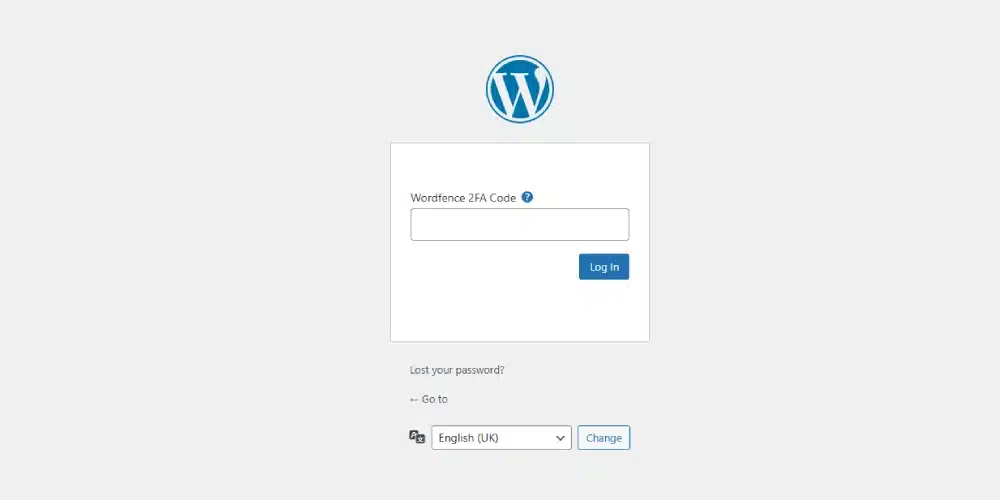
After you enter your username and password on your WordPress login page, you’ll see a prompt asking for an extra code. You open an authenticator app on your phone, which displays a six-digit number that changes every 30 seconds. Enter that code, and you’re in.
The beauty of this system is that a hacker would need both your password and physical access to your phone at the exact moment they try to log in. Without both pieces, they cannot access your site.
Why Your Password Is Not Enough
Passwords can be stolen in many ways. Data breaches expose them by the millions. Phishing emails trick people into entering them on fake websites.
Many people use the same password across multiple sites, so one breach compromises everything.
Strong passwords help, but they’re not foolproof.
Two-factor authentication means that even a compromised password won’t give attackers easy access to your WordPress site.
Do Small Websites Really Need 2FA?
Yes. Hackers don’t manually choose which sites to attack. They use automated bots that scan thousands of WordPress sites every hour, looking for weak passwords.
Your site’s size doesn’t matter to a bot.
Small business websites are actually attractive targets. They often have outdated plugins, weaker passwords, and no security monitoring. Once inside, attackers can use your site to send spam, host phishing pages, or attack other websites.
You might not even notice until Google blacklists your domain or your hosting provider suspends your account.
Setting up 2FA takes 10 minutes and costs nothing. It’s one of the simplest ways to protect your business online.
WordPress Security Checklist for Businesses
Installing 2FA
WordPress doesn’t include two-factor authentication by default, so you need to install a plugin to add this functionality.
Several good free options exist, and each works slightly differently.
WP 2FA
This plugin is specifically designed for two-factor authentication and nothing else. It includes a setup wizard that guides you through every step, making it ideal if you’re new to 2FA. The free version supports authenticator apps and email-based codes.
Best for: Business owners who want a dedicated, easy-to-configure 2FA solution with clear instructions.
Wordfence Login Security
If you already use Wordfence for security, their free Login Security plugin adds 2FA without needing a separate tool. It works with any authenticator app and includes brute-force protection and login page CAPTCHA.
Best for: Sites already using Wordfence or those wanting additional login protection features.
Two-Factor
This plugin comes from the team behind WordPress itself. It’s simple, lightweight, and completely free. You configure it from your user profile page rather than through a separate settings area.
Best for: Users who want the simplest possible 2FA with minimal settings.

Setting Up 2FA: Step-by-Step Instructions
We’ll use WP 2FA for this walkthrough because its setup wizard makes the process clear. The general steps apply to other plugins too.
Step 1: Install Your Authenticator App
Before touching your WordPress site, download an authenticator app to your phone. Google Authenticator, Microsoft Authenticator, and Authy are all free and reliable. You’ll find them in the App Store for iPhone or Google Play for Android.
Authy has one useful feature: it can back up your codes to the cloud. If you lose your phone, you can restore them on a new device. Google Authenticator and Microsoft Authenticator keep everything on your device only, which some people prefer for security reasons.
Step 2: Install and Activate the Plugin
First, take a backup.
Log in to your WordPress dashboard and go to Plugins, then Add New. Search for “WP 2FA” and click Install Now. Once installed, click Activate.
The setup wizard should launch automatically. If it doesn’t, go to Users and then Your Profile. Scroll down and look for the WP 2FA Settings section, then click the button to configure two-factor authentication.
Step 3: Choose Your Authentication Method
The wizard asks which method you want to use. Select the authenticator app option. This uses something called TOTP (Time-based One-Time Password), which simply means the app generates a new six-digit code every 30 seconds. It’s more secure than email codes because the codes only exist on your device and expire almost immediately.
Step 4: Connect Your Authenticator App
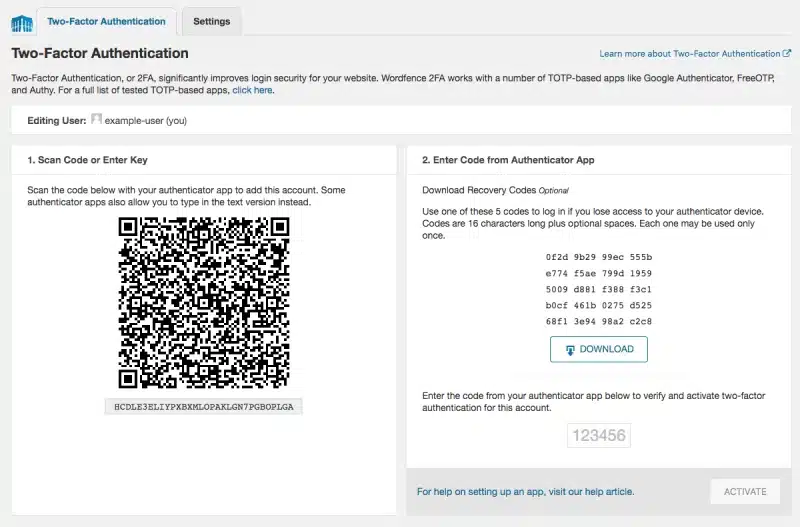
The plugin displays a QR code on screen. Open your authenticator app and use it to scan this code. In Google Authenticator, tap the plus icon and choose “Scan a QR code”. In Authy, tap “Add Account” and then scan.
Once scanned, your app immediately shows a six-digit code for your WordPress site. These codes refresh every 30 seconds.
Step 5: Verify the Connection
Enter the current code from your authenticator app into the verification field on your WordPress screen. This confirms everything is connected properly.
Step 6: Save Your Backup Codes
This step is important. The plugin generates a set of backup codes: single-use codes you can enter if you cannot access your phone. Print these or save them somewhere secure, like a password manager or a locked file on your computer.
Don’t skip this step. If you lose your phone without backup codes, you could be locked out of your own website permanently.
What to Do If You Get Locked Out
Getting locked out is the biggest worry people have about 2FA, but there are several ways to regain access.
Using Backup Codes
If you saved your backup codes, enter one instead of the authenticator code at login. Each backup code works once, so cross it off your list after use.
Disabling the Plugin Through Your Hosting
If you cannot use backup codes, you can disable the 2FA plugin through your hosting control panel. Most hosts provide a File Manager tool that lets you browse your website files.
Open File Manager and find the folder called wp-content, then open the plugins folder inside it.
Look for the folder named “wp-2fa” (or whatever plugin you’re using) and rename it to something like “wp-2fa-disabled”. This deactivates the plugin, letting you log in with just your password.
Once you’re back in your dashboard, delete and reinstall the plugin, then set up 2FA again. This time, save your backup codes somewhere you won’t lose them.
Contacting Your Host
Some managed WordPress hosts offer support for security issues. If you’re truly stuck, contact your hosting provider and explain the situation. They may be able to help you regain access or guide you through the file manager process.

Enforcing 2FA for All Users
If your WordPress site has multiple users, you might want to require everyone to use 2FA.
This is especially sensible for anyone with admin or editor access, as these accounts can make significant changes to your site.
Setting Up 2FA Policies
In WP 2FA’s settings, you can create policies that determine which users must enable 2FA. You might require it for administrators and editors while leaving it optional for subscribers or customers.
You can also set a grace period.
This gives users a set number of days to configure their 2FA before they’re required to complete it. A week is usually enough time for people to get set up without feeling rushed.
Communicating the Change
Let your users know before enforcing 2FA. Send an email explaining what two-factor authentication is, why you’re requiring it, and how to set it up. Include a link to download an authenticator app and offer help if anyone has questions.
Common Questions and Concerns
Many people hesitate to enable 2FA because they worry about inconvenience or problems. Here are the most common concerns.
Will This Slow Down My Login?
Adding the code takes about five seconds. You enter your password, open your phone, type six numbers, and you’re in. Most people find this small delay worthwhile for the security it provides.
What If I Change Phones?
If you use Authy with cloud backup enabled, your codes transfer automatically when you sign into Authy on your new phone.
For Google Authenticator or Microsoft Authenticator, you need to transfer your accounts before wiping your old phone. Both apps now include a transfer feature that uses a QR code to move accounts between devices.
Alternatively, use your backup codes to log in and reconfigure 2FA on the new device.
Does 2FA Work with WooCommerce?
Yes. If you run an online shop with WooCommerce, 2FA plugins like WP 2FA integrate with WooCommerce login forms. You can protect your store’s admin area just as you would a regular WordPress site.
Next Steps for WordPress Security
Two-factor authentication is one of the most effective security measures you can add to your WordPress site. Security experts consider it the single best protection against automated login attacks.
Once you have 2FA working, consider strengthening other areas of your site’s security.
Review your passwords and make sure every admin account uses a unique, strong password. Enable automatic WordPress updates so security patches install promptly. Set up regular backups so you can recover quickly if anything goes wrong.
If managing all this feels like too much, remember that 2FA alone blocks the vast majority of automated attacks. By setting it up today, you’ve made your site significantly harder to hack than most WordPress websites.
Frequently Asked Questions
Two-factor authentication adds a second security step to your WordPress login. After entering your password, you then have to enter a code from your phone. This means hackers cannot access your site with just a stolen password. They would need your phone too.
Google Authenticator, Microsoft Authenticator, and Authy are all free and work well. Authy can back up your codes to the cloud, which helps if you lose your phone. Google and Microsoft Authenticator keep everything on your device. Any of these work with WordPress 2FA plugins.
Yes. Plugins like WP 2FA, Wordfence Login Security, and Two-Factor all offer free two-factor authentication. The authenticator apps are also free. You can fully protect your WordPress login without spending anything.
Use your backup codes to log in. When you first set up 2FA, the plugin gives you single-use backup codes. If you didn’t save them, you can disable the plugin through your hosting file manager, then set up 2FA again with new backup codes.
About 10 minutes from start to finish. Install an authenticator app, install the plugin, scan the QR code, verify the connection, and save your backup codes. Most people complete the process without any problems.
Only by about five seconds. You enter your password, open your app, type six numbers, and press login.
Yes. Strong passwords help, but they can still be stolen through data breaches, phishing, or malware. Two-factor authentication protects you even if your password is compromised.
In your WordPress dashboard, go to your user profile and look for the 2FA settings. You can disable it there. If you’re locked out, rename the plugin folder through your hosting file manager to deactivate it temporarily.