In Brief
Child themes let you customise WordPress without losing work to updates
They’re worth the setup if you’re writing code in theme files
Modern block themes have made them optional for visual changes
Code Snippets plugins offer an easier alternative for adding PHP functions
Create a child theme only when simpler options won’t do the job
You’ve probably heard that you need a child theme before making any changes to your WordPress site.
But is that actually true for your situation?
The advice online ranges from “always use a child theme” to “child themes are outdated.” That’s confusing when you just want to change a font or move a button.
The truth lies somewhere in the middle.
Child themes remain useful for certain situations, but modern WordPress has introduced alternatives that work better for many small business owners.
This guide explains when you genuinely need a child theme, when you don’t, and how to make the right choice for your website.
Table of Contents
What Is a WordPress Child Theme?
A child theme is a separate ‘mini-theme’ that borrows everything from another theme (called the parent theme). It inherits all the design, features, and code from the parent, but lets you make changes without editing the original (parent) files.
Think of it like this: your main theme is a recipe, and the child theme is your personal notes written in the margins.
You can add ingredients or change quantities without rewriting the original recipe. When the cookbook publisher releases an updated edition, your notes stay intact.
How Parent and Child Themes Work Together
When you activate a child theme, WordPress loads it alongside the parent theme. The parent theme must remain installed on your site, even though it’s not activated.
Your child theme tells WordPress which parent it belongs to, and WordPress combines the two.
If you’ve customised something in the child theme, WordPress uses your version. For everything else, it falls back to the parent. This means you only need to include the files you’re actually changing.
The real benefit comes at update time. When the parent theme developer releases security fixes or new features, you can update safely. Your customisations live in the child theme, completely separate from the files being replaced.
When You Definitely Need a Child Theme
Some customisations absolutely require a child theme. Skip this step in these situations and you’ll lose your work the next time your theme updates.
Code-Level Customisations
If you’re adding PHP code to your theme, you need a child theme. This includes:
- Adding custom functions to functions.php
- Creating or modifying template files
- Writing more than a few hundred lines of CSS
- Adding custom page templates
- Changing how specific elements display across your site
Without a child theme, any code you add directly to main theme files gets overwritten during theme updates. WordPress doesn’t warn you or create a backup. Your changes simply vanish.
Classic Theme Modifications
If you’re using a classic theme (one designed before Full Site Editing), a child theme remains the safest approach for significant changes.
Classic themes store their design in PHP template files, and editing those files directly means losing everything when updates arrive.
You can check which type of theme you have by going to Appearance in your WordPress admin. If you see “Editor” with options to edit templates and styles, you have a block theme.
If you only see “Customise,” you have a classic theme.
When You Probably Don’t Need One
Modern WordPress has changed how themes work. Many customisations that once required a child theme can now be done safely through built-in tools.
Using Block Themes and Full Site Editing
Since WordPress 5.9, block themes have transformed how customisation works.
When you make changes through the Site Editor, WordPress saves them to your database rather than to theme files. Theme updates don’t touch your database, so your customisations stay put.
If you’re using a block theme like Twenty Twenty-Four or Twenty Twenty-Five, you can safely:
- Change colours and fonts through Global Styles
- Modify templates for posts, pages, and archives
- Rearrange header and footer elements
- Create new page templates
All of these changes are protected from any theme updates because they’re stored separately from the theme files.
Minor Styling Changes
For small CSS tweaks, you don’t need a child theme.
WordPress includes an Additional CSS section in the Customiser (or Site Editor for block themes) where you can add custom CSS style code.
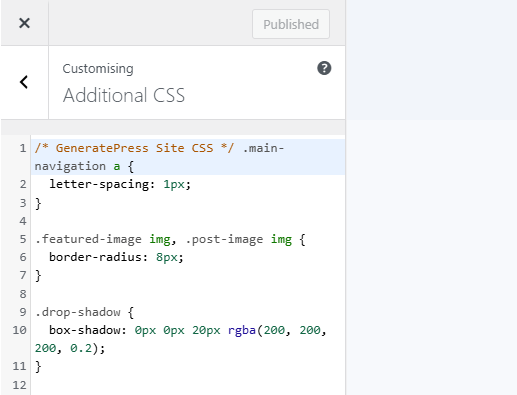
These changes save to your database and apply on top of your theme’s default styles. A few lines of CSS to change a button colour or adjust spacing work perfectly well here.
Alternatives to Child Themes
Several tools and plugins now handle tasks that previously required child themes. Depending on what you’re trying to achieve, these might be simpler options.
The WordPress Customiser is built into every WordPress site. The Additional CSS section handles small style changes safely, and your CSS code persists through theme updates.
Code Snippets plugins like Code Snippets or WPCode let you add PHP functions without touching theme files. You can enable or disable individual snippets, and they remain active even if you change themes entirely.
Dedicated CSS plugins offer more organisation than the Customiser if you need syntax highlighting, categorisation, or live preview features for larger amounts of custom styling.
Which Alternative Should You Choose?
Match the tool to what you’re changing:
- Changing colours or fonts: Use the Customiser or Site Editor
- Adding tracking scripts or PHP functions: Use a Code Snippets plugin
- Small CSS tweaks: Use Additional CSS in the Customiser
- Functions that should work across different themes: Use a Code Snippets plugin
- Editing template files or theme PHP: Create a child theme

What About Page Builders?
If you’re using a page builder like Elementor, Divi, or Beaver Builder, you might wonder where child themes fit in.
The short answer: page builders store your designs in the WordPress database, not in any theme files. This means your layouts, content, and styling survive theme updates without any extra protection.
Elementor
Elementor saves all your page designs, templates, and styling to the database.
When you build with Elementor’s drag-and-drop editor, those changes exist independently of your theme files. You can update your theme without losing your Elementor layouts.
You don’t need a child theme for Elementor designs. However, if you’re adding custom CSS outside of Elementor’s built-in options, or writing PHP functions that modify how Elementor works, a child theme keeps that code safe.
Many developers use the Hello Elementor theme (Elementor’s own lightweight theme) with a child theme for this purpose.
Divi
Divi works similarly.
When you design pages using the Divi Builder, your layouts are stored in the database. The same applies to settings in Divi Theme Options, the Theme Customiser, and any CSS you add through Divi’s built-in fields. None of these get overwritten during theme updates.
You only need a Divi child theme if you’re editing PHP files directly (like header.php or footer.php) or adding code to functions.php.
For most Divi users who stick to the visual builder and built-in options, a child theme adds unnecessary complexity. Divi was designed with this in mind, allowing extensive customisation without touching theme files.
Beaver Builder
Beaver Builder follows the same pattern. Your page layouts and module settings live in the database, completely separate from theme files. Whether you use the Beaver Builder Theme or a third-party theme, your designs remain intact through updates.
Beaver Builder’s documentation recommends installing their child theme as a precaution, even if you don’t plan to add custom code.
Their reasoning: it’s easier to install a child theme from the start than to add one later when you discover you need it. The child theme sits there doing nothing until you need it, but it’s ready when you do.
In Summary
If you’re designing entirely within your page builder’s visual editor, your work is already protected. Page builders were built to store everything in the database specifically so users wouldn’t need to worry about theme updates.
Consider a child theme only if you’re:
- Adding custom PHP functions
- Writing CSS outside the page builder’s built-in options
- Modifying template files like header.php or footer.php
- Using code snippets that need to live in functions.php
For most small business owners using page builders, a child theme isn’t necessary. The visual builder handles protection automatically.
What About GeneratePress and Genesis?
Two popular theme frameworks deserve special mention because they handle child themes quite differently from each other.
GeneratePress (Our preferred theme)
GeneratePress stores most of your customisations in the database rather than in theme files. This means your design choices, colour settings, and layout options survive theme updates without a child theme.
You can add custom CSS through the Customiser’s Additional CSS field. If you have GeneratePress Premium, you can add PHP code through Hook Elements without touching any files.
When you need a child theme with GeneratePress:
- You want to edit template files directly (like header.php or single.php)
- You need custom page templates
- You prefer keeping CSS in a separate stylesheet
When you probably do not need one:
- You are using the Customiser for design changes
- You are adding CSS through the Additional CSS field
- You are using Hook Elements for PHP snippets
GeneratePress allows it to be highly customised and provides a blank starter child theme you can download from their documentation. We would recommend starting out using this, as there’s no real downside.
StudioPress and the Genesis Framework
Genesis works completely differently. It is a framework designed specifically around the parent-child theme relationship.
Here is the key point: Genesis requires a child theme. StudioPress themes are themselves child themes built on the Genesis framework.
When you use Genesis, you install two things:
- The Genesis Framework (parent theme)
- A StudioPress theme like Monochrome Pro or Altitude Pro (child theme)
If you activate Genesis without a child theme, WordPress displays a warning asking you to activate one.
This is intentional.
Genesis receives regular updates for security and features. Your StudioPress child theme contains your customisations and design, which remain untouched when Genesis updates.
If you heavily customise your StudioPress theme, those changes stay safe in your child theme files. The Genesis framework updates happen separately.
How to Decide What’s Right for You
Start by asking what you’re actually trying to change.
If your answer involves editing PHP files, creating custom templates, or writing hundreds of lines of CSS, a child theme makes a lot of sense.
The setup involves creating a folder with two files (style.css and functions.php) and takes about ten minutes. That small investment protects your work long-term.
If you’re making visual changes through the WordPress interface, adjusting colours, or adding a snippet of CSS, the built-in tools handle this perfectly.
Creating a child theme would add complexity you don’t need.
Consider your technical comfort level too. Child themes require uploading files to your server and understanding where WordPress stores theme files. If that sounds unfamiliar, the plugin approach keeps everything within the WordPress admin where you’re already comfortable.
What to Do Next
Child themes aren’t mandatory for every WordPress site. They’re a specific tool for specific situations.
If you’re editing any theme code directly, or adding PHP files, create a child theme before making changes. Many theme developers provide ready-made child themes you can download from their websites. Astra, GeneratePress, OceanWP, and most popular themes offer these.
Alternatively, plugins like Child Theme Configurator can create one for you in a few clicks.
If you’re making changes through the WordPress interface or using plugins, you probably don’t need a child theme at all. The Site Editor and Customiser already protect your work from updates.
Whatever approach you choose, always back up your site before making significant changes. A full backup takes minutes and gives you a safety net if anything goes wrong.
Frequently Asked Questions
If you edit theme files directly without a child theme, your changes disappear whenever that theme updates. WordPress replaces all the original theme files with fresh copies. There’s no warning and no automatic backup of your modifications.
Usually not. Page builders like Elementor store your designs in the WordPress database, not in theme files. Your layouts, styling, and content remain safe through theme updates. You’d only need a child theme if you’re also editing theme files directly.
Yes, but you’ll need to transfer your customisations. Copy any code you’ve added to theme files into the new child theme before updating the parent. Changes made through the Customiser are stored separately and should remain, but check everything works after switching.
Yes. A child theme cannot function without its parent theme installed. WordPress needs both themes present to display your site correctly. You can deactivate the parent theme, but never delete it while using a child theme.
Check your theme developer’s website or documentation. Many popular themes like Astra, GeneratePress, and OceanWP offer ready-made child themes for download. Installing these saves time compared to creating one yourself.
Not really. You update the parent theme normally through WordPress. The child theme rarely needs updating since it only contains your customisations. In practice, child themes simplify maintenance because your changes stay organised in one place.
A properly created child theme has minimal performance impact. WordPress efficiently combines parent and child theme files. The small overhead is negligible compared to factors like hosting quality, image sizes, and plugin choices.
No. A child theme is specifically linked to one parent theme. If you want to switch to a different parent theme, you’ll need to create a new child theme for that parent and manually transfer any customisations you want to keep.