In Brief
WordPress updates protect your site from security threats and keep everything running smoothly
Always create a full backup before updating anything on your site
You can update WordPress core, plugins, and themes directly from your dashboard
Minor security updates happen automatically, but major updates need your approval
Test your site after every update to catch problems early
Those red notification bubbles are back in your WordPress dashboard.
Updates are waiting, and you’re wondering whether to click the button or leave things alone. You know it’s important to keep everything up to date, but there’s always a chance it goes wrong…
Here’s what actually happens when you ignore those notifications: your site becomes a target.
Hackers actively scan for WordPress sites running outdated software because they know exactly which security holes exist in older versions.
Meanwhile, your plugins start conflicting with each other as some update while others fall behind. Your site slows down, errors appear, and eventually something breaks anyway.
The good news?
Updating WordPress properly is straightforward once you know the process.
This guide walks you through updating the core software, plugins, and themes without breaking your site. You’ll learn when automatic updates make sense, how to prepare properly, and what to do if something goes wrong. By the end, you’ll approach those red bubbles with confidence rather than anxiety.
Table of Contents
Why WordPress Updates Matter
WordPress updates aren’t just about shiny new features. They fix security problems, improve performance, and ensure all your site’s components work together properly.
Security Updates
When WordPress developers discover a security weakness, they release a patch quickly. Hackers know about these vulnerabilities too, and they actively scan for sites running outdated software.
A single unpatched security hole can give attackers access to your entire website, your customer data, and your business reputation.
Security patches are the most important updates you’ll receive. The WordPress security team monitors threats constantly and responds to new vulnerabilities.
Applying these patches promptly keeps your site protected against known attack methods.
Feature and Compatibility Updates
Beyond security, updates bring performance improvements that help your site load faster for visitors. They fix bugs that cause errors and add new features that make managing your content easier.
Updates also maintain compatibility with the PHP versions your web hosting runs.
If WordPress falls too far behind, you might encounter problems when your hosting provider upgrades their servers. Keeping current prevents these conflicts before they disrupt your business.
Types of WordPress Updates
Not all updates work the same way and they can be rolled-out at any time.
Core Updates Explained
Core updates change the fundamental WordPress software running your site. You’ll encounter two types throughout the year.
Major releases, like WordPress 6.0 or 6.5, introduce significant new features and interface changes. These happen two to four times per year and sometimes change how you work with your site. Major updates require your approval before installing, giving you time to check compatibility.
Minor releases, like 6.5.1 or 6.5.2, focus on security patches and bug fixes. These install automatically by default because they’re essential for keeping your site secure. You’ll barely notice them happening in the background.
Plugin and Theme Updates
Plugins and themes come from thousands of different developers, each releasing updates on their own schedule.
Popular plugins used by millions of sites update frequently because their developers actively patch security issues and add improvements.
Theme updates work similarly but affect your site’s appearance rather than functionality.
If you’re using a theme from the WordPress directory or a reputable developer, you’ll see regular updates. Both plugins and themes need attention to prevent security vulnerabilities and maintain compatibility with WordPress core.
How to Update Your WordPress Theme Without Breaking Your Site
Before You Update: Preparation Steps
Five minutes of preparation prevents hours of troubleshooting. These steps protect you if anything goes wrong during the update process.
Creating a Backup
Before pressing any update button, back up your entire site. A proper backup includes both your files and your database, giving you everything needed to restore your site completely.
Install a backup plugin like UpdraftPlus if you haven’t already. Create a manual backup and store it somewhere external, such as Google Drive or Dropbox.
Your hosting provider might offer backup tools too, but having your own copy stored elsewhere gives you extra protection.
The goal is simple: if an update causes problems, you can restore your site to exactly how it was before. Without a backup, you’re gambling with your business website.
How to Backup Your WordPress Site
Checking Compatibility
Before major updates, spend a minute checking for potential issues.

Look at the changelog for any plugins you rely on heavily. Developers usually note compatibility with new WordPress versions in their update notes.
Check your hosting control panel to verify your PHP version meets the requirements for the WordPress version you’re updating to. Most UK hosts display this information clearly in their dashboard.
For business sites where downtime matters, consider testing updates on a staging site first. Many hosting providers include this feature in their packages, letting you try updates safely before applying them to your live site.
How to Update WordPress Core
Updating WordPress core takes just a few clicks when you do it through your dashboard. Here’s the process step by step.

Step-by-Step Core Update Process
Log in to your WordPress admin area.
(Then do a backup)
Look for a red notification bubble on the Dashboard menu, or go to Dashboard, then Updates directly.
You’ll see a message telling you which WordPress version is available.
Click the “Update to version X.X” button. WordPress downloads the new files and installs them automatically while you wait.
During the update, your site briefly enters maintenance mode. Visitors see a simple message saying the site is temporarily unavailable. This usually lasts just a few seconds for minor updates, perhaps a minute for major ones.
To reduce inconvenience for your visitors, time these updates for when your website has the least traffic.
Once complete, WordPress displays a welcome screen showing what’s new in this version. Browse your site to confirm everything looks correct and your pages load properly.
Automatic Core Updates
WordPress handles minor security updates automatically by default. This protects your site because security patches need applying as soon as possible after release.
There is the option to turn this off if you prefer full control.
For major releases, you have a choice. Go to Dashboard, then Updates, and you’ll see an option to “Enable automatic updates for all new versions of WordPress.” Enabling this means major updates install without waiting for your approval.
Most small business sites work well with automatic minor updates enabled but major updates set to manual. This gives you security protection while letting you choose when to apply bigger changes that might affect your workflow.

How to Update Plugins and Themes
Plugin and theme updates follow a similar process to core updates but deserve individual attention because they come from many unrelated sources.
Your WordPress software is maintained by WordPress, but each of your plugins and themes is likely to be from different software providers.
Updating Plugins
Go to Plugins, then Installed Plugins in your dashboard.
Plugins with available updates show a yellow notification bar underneath their name with details about the new version.

You can update all plugins at once using the bulk action dropdown at the top of the list.
However, updating them individually by clicking “Update now” next to each one makes troubleshooting easier. If something breaks, it will be easier to see which plugin caused the problem.
After updating plugins, test your site properly.
Check that contact forms still submit, pages load correctly, and any special functionality like booking systems or payment processing works as expected.
Updating Themes
Go to Appearance, then Themes to see available theme updates. Click on your active theme and look for the update notification in the theme details panel.
If you’ve customised your theme directly by editing its files, these updates will overwrite your changes.
This is why using a child theme matters.
A child theme keeps your customisations in a separate location, so parent theme updates don’t affect your modifications.
Even themes you’re not actively using should stay updated. Inactive themes with security vulnerabilities still create risks because the code remains on your server where attackers might exploit it.
It is not good practise to have lots of themes on your site, you can only use one at a time. Our recommendation is to also have just the latest WordPress default them available, in case of emergencies.
Managing Automatic Updates
WordPress gives you control over which updates happen automatically. The right settings depend on how actively you manage your site and your comfort level with different types of updates.
Configuring Plugin and Theme Auto-Updates
Since WordPress 5.5, you can enable automatic updates for individual plugins and themes. On the Installed Plugins page, look for “Enable auto-updates” in the column on the right. Click it to toggle automatic updates on or off for each plugin separately.
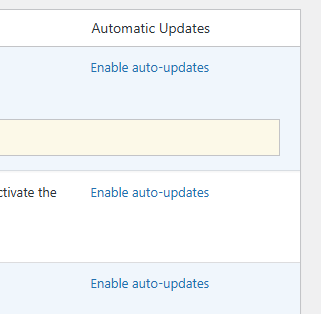
This granular control lets you automate updates for plugins you trust while keeping manual control over others.
Security plugins and those from established developers are usually safe to auto-update. Plugins with complex settings or those that affect your site’s appearance might warrant more careful, manual updates.
Finding the Right Balance
If you log in to your site weekly, manual updates give you more control. You can test changes immediately and catch problems while you’re actively looking at the site.
If weeks pass between logins, automatic updates help keep things secure in the meantime. A site running outdated plugins for a month is more vulnerable than one that auto-updates and occasionally needs a quick fix.
For most small business sites, a balanced approach works well: keep automatic minor core updates enabled, manually apply major core updates when you have time to test, and enable auto-updates for well-maintained plugins from trusted developers.
What to Do After Updating
The update process isn’t finished until you verify everything works properly. A quick check now saves you from discovering problems when a customer contacts you.
Post-Update Checklist
Visit your homepage using incognito mode and click through several important pages. Check that images display correctly and menus work as expected.
Test any contact forms by submitting a test message to yourself.
(It’s a good idea to do this once a month anyway.)
If you have an online shop, try adding something to your basket and proceed through checkout as far as you can without completing a purchase.
Clear your browser cache and your WordPress cache if you use a caching plugin. Cached versions of your pages might hide problems or display outdated content that confuses visitors.
Monitoring for Issues
Keep an eye on your site for a day or two after updates. Sometimes issues appear gradually as different visitors access different parts of your site or as cached pages expire.
Check your email for any error notifications if you have monitoring set up. A quick look at your site statistics can also reveal problems, such as a sudden drop in traffic that might indicate pages aren’t loading properly.
Troubleshooting Update Problems
Even with proper preparation, updates occasionally cause problems. Here’s how to handle the most common issues without panicking.
Common Update Issues
The white screen of death, where your site shows a blank white page, usually means a plugin conflict.
Don’t worry, this is fixable.
At this point you cannot login via the Dashboard.
Access your site via FTP or your hosting file manager. Go to wp-content/plugins and rename the plugins folder to something like “plugins-disabled.” This deactivates all plugins at once. If your site loads after this change, go back to the Dashboard and reactivate plugins one by one to find which one caused the conflict.
If a specific feature stops working after an update, the recently updated plugin or theme likely caused it. Roll back to the previous version using a plugin like WP Rollback, or restore your backup if you made one before updating.
Database errors after updates sometimes require clicking the “Update Database” button that WordPress displays. This adjusts your database structure for the new version and usually resolves the issue immediately.
When to Get Professional Help
Some situations warrant professional assistance rather than attempting fixes yourself.
If you don’t have a recent backup and your site is broken, a WordPress expert can often recover it using techniques that require server access or database knowledge.
Complex sites with custom code need careful handling when conflicts arise because fixes in one area might break another.
Repeated update problems might indicate underlying issues with your hosting environment or site configuration. A WordPress professional can diagnose these properly rather than applying temporary fixes that don’t address the root cause.
If you’d prefer someone else handles updates entirely, our WordPress maintenance service keeps your site current without you needing to think about it. We handle backups, updates, and testing so you can focus on running your business.
Conclusion
Regular WordPress updates keep your site secure, fast, and working properly.
The process is straightforward once you establish a routine: back up your site, apply the updates, and verify everything works. With a backup in place, you can update confidently knowing you can restore things quickly if needed.
Make updating a regular habit.
Set a reminder.
Monthly checks keep your site current without letting updates pile up into a risky batch. Set a reminder, perhaps on the same day you do other monthly business tasks, and those red notification bubbles won’t catch you off guard.
Your visitors expect your site to work. Your business depends on it staying secure. Regular updates protect both, and now you know exactly how to do them properly.
Frequently Asked Questions
Check for updates at least monthly, though fortnightly is better for active business sites. Security updates should be applied as soon as possible after release. Don’t let updates accumulate for months because large batches of updates carry higher risk of conflicts than regular small updates.
Updates can occasionally cause conflicts, but problems are rare when you follow proper procedures. Always back up before updating, and you can restore your site within minutes if something goes wrong. The risk of not updating is actually greater because outdated sites attract security attacks.
Yes, all three need regular updates. Outdated plugins are one of the most common security vulnerabilities in WordPress sites. Themes need updating too, even ones you’re not currently using. Each component requires independent attention to keep your site fully protected.
It depends on your situation. Automatic plugin updates work well for sites where you don’t log in frequently. If you actively manage your site, manual updates give you more control to test changes. For most small business sites, enabling auto-updates for trusted, well-maintained plugins is a sensible approach.
Our suggestion is to set the security plugin to auto-update, along with minor WordPress updates. Then you can do the others every 2-4 weeks.
Install a backup plugin like UpdraftPlus and create a complete backup including files and database. Store the backup somewhere external like Google Drive or Dropbox. Many UK hosting providers also offer backup tools. The key is having a recent backup you can actually restore from if needed.
If you are completely locked out of WordPress then you will need to access your website files through the server control panel, FTP or by contacting your hosting company.
Your site becomes increasingly vulnerable to security attacks because hackers target known vulnerabilities in older versions. Plugins may stop working correctly, and compatibility issues multiply. Eventually, your hosting provider may require you to update before they’ll provide support for any problems.
For most sites, yes. WordPress enters maintenance mode briefly during core updates, but visitors can usually still access your site during plugin and theme updates. For business sites where downtime must be avoided, test updates on a staging site first. Always update during quieter traffic periods when possible.
A child theme inherits functionality from a parent theme while keeping your customisations separate. When the parent theme updates, your custom styling and code changes stay intact in the child theme. Without a child theme, updating your theme overwrites any modifications you’ve made directly to theme files.
Consider professional help if your site has complex custom code, you’ve experienced repeated update problems, or you simply don’t have time for regular maintenance. Sites running online shops or handling customer data benefit from expert care. Our WordPress maintenance service handles all updates safely, so you can focus on your business.